ShadowrocketSetup and Connection Guide
Follow this sequence: add your details → choose a routing mode → connect → verify the result → pinpoint any issues. This guide is for iPhone and iPad. First establish a repeatable connection, then adjust your everyday configuration.
These are official App Store screenshots to help you locate controls. Fields vary by Type and app version; follow the English labels and prompts shown on your device.
STEP 01 / IMPORT
Add Server / Subscribe: Add your existing details
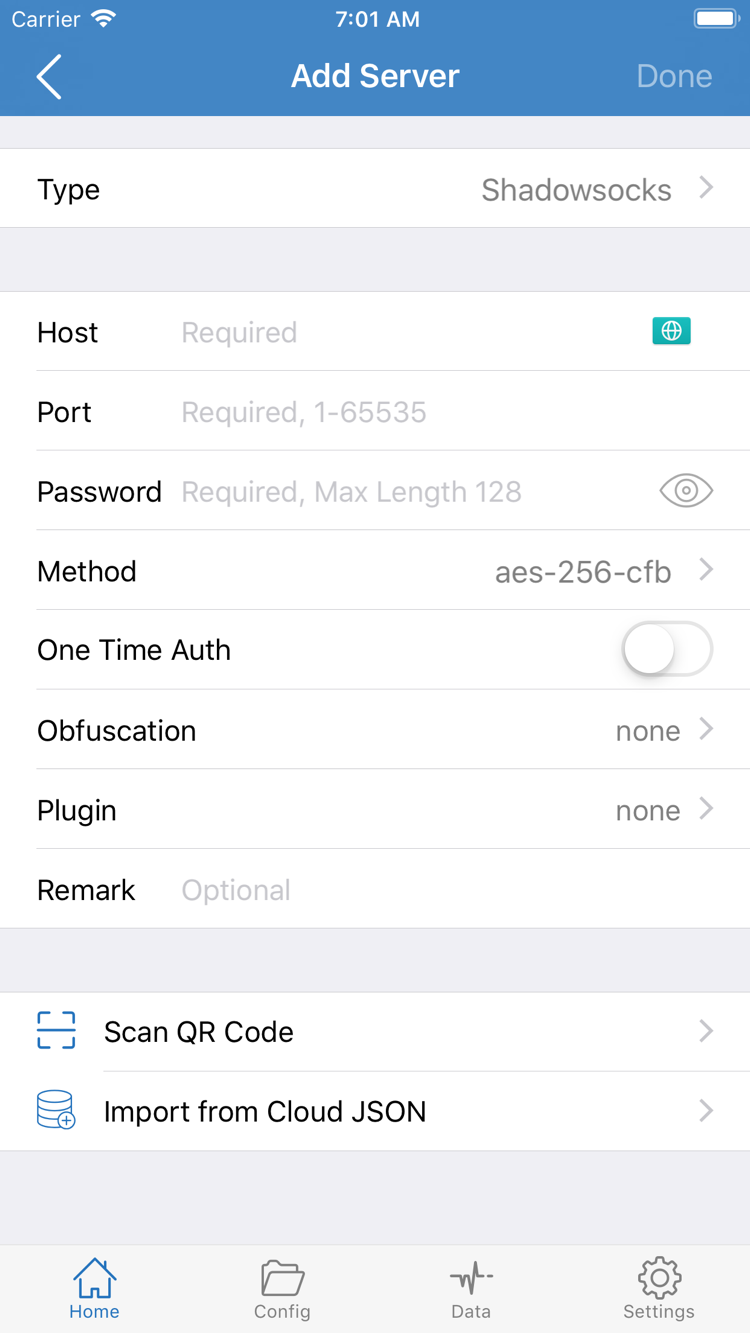
Open Home in Shadowrocket and locate the SERVER section and Add Server at the bottom. There are two kinds of connection details: a subscription URL retrieves and updates a list of server entries, while individual server details specify the protocol and parameters for connecting to one server. Enter them in the appropriate fields. Don’t enter a subscription URL as a Host or import a regular information webpage as a subscription URL.
Have a subscription link? Choose Subscribe
On Home, tap Add Server. On the page that opens, tap Type and select Subscribe. Enter your complete subscription link in the URL field, then save. Check that the link wasn’t truncated by a messaging app and contains no added line breaks or leading or trailing spaces. Query parameters are usually part of the URL, so don’t remove them based on a guess. Subscription URLs may contain access credentials; keep them on your own device and out of public posts and screenshots.
After saving and retrieving the contents, return to Home and check that the expected entries appear under SERVER. If you see a subscription record but no servers, check for an update error before trying the connection switch repeatedly. A subscription retrieval failure happens while fetching details; it is separate from whether a server can connect. Confirm that the URL is valid and reachable on your current network, then retry using the update option for that subscription.
Have server details? Fill in the fields for the selected Type
For details for a single server, open Add Server and select the Type that matches the protocol in your details. Fill in Host, Port, and the authentication and transport fields required for that Type. The official screenshot shows one kind of form; not every Type uses Password and Method fields. Don’t change the protocol just to match the screenshot. Enter the hostname or address and port from your details, and preserve the exact capitalization of case-sensitive credentials.
If you have a compatible QR code, use Scan QR Code to import it, then open the new entry and check each field. Import from Cloud JSON is for existing details in a supported format; it is not a general-purpose way to import any subscription link. Either way, return to Home after saving, confirm that the entry name and settings match, and select the server you plan to test. The name is only a label; check the actual settings as well.
STEP 02 / ROUTING
Global Routing: Choose Config, Proxy, or Direct
After adding your details, return to Home and tap Global Routing. This setting determines how requests are handled; it does not change the server. The three options are Config, Proxy, and Direct. Instead of assuming that one option is always right for first-time use, decide which factors you want to isolate in this test, then choose a mode accordingly.
| Mode | How it works | When to use it |
|---|---|---|
| Config | Routes requests according to the rules in the active configuration. | Use for everyday routing once you’ve confirmed that the active rules work as intended. |
| Proxy | Handles requests taken over by the client using proxy mode. | Use for a temporary comparison to reduce the effect of rule selection on your results. |
| Direct | Handles requests as direct connections, rather than normally routing them through the selected proxy server. | Check how a service behaves on your current network without the proxy. |
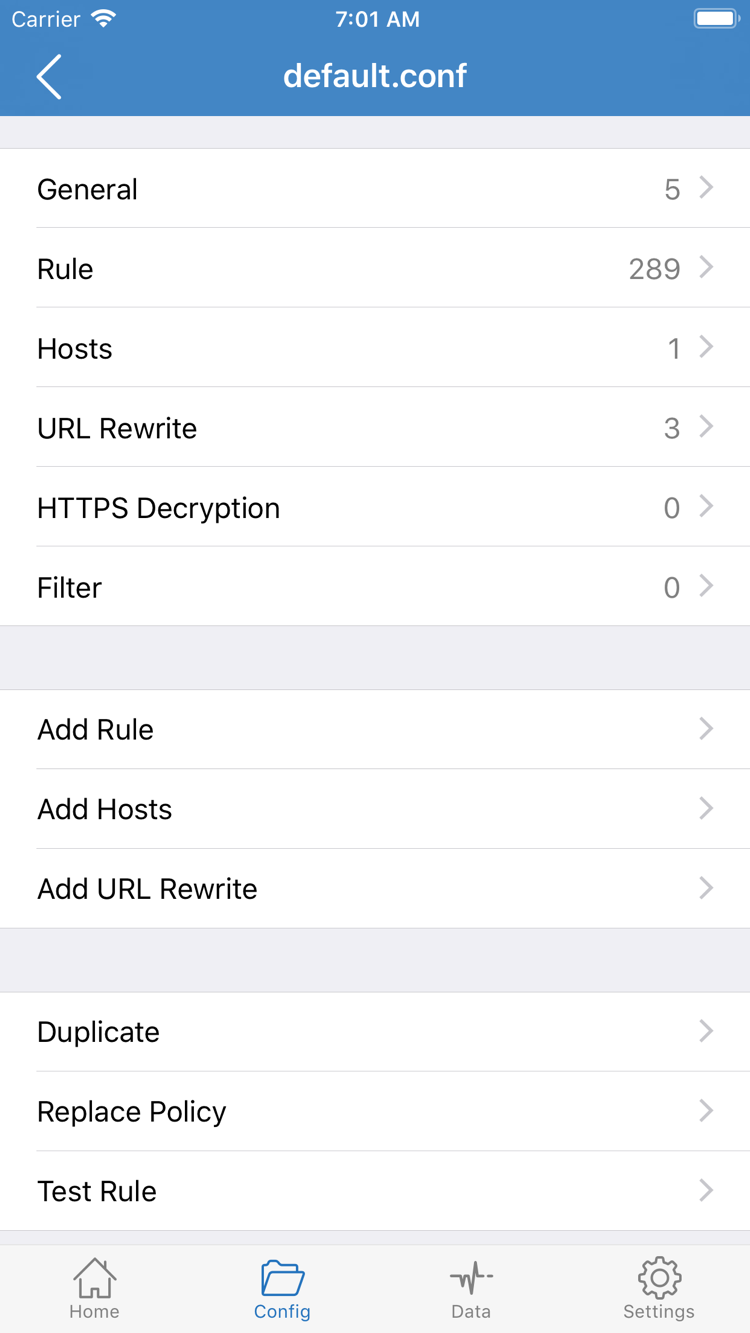
If you plan to use Config, open Config, confirm which configuration is active, and review its Rule section. The selected file and its contents matter more than the filename: two files with the same name can contain different rules. General, Rule, Hosts, URL Rewrite, and HTTPS Decryption in the screenshot are sections of the configuration editor. For this first setup, just confirm the active configuration and Rule; you don’t need to enable or change the other sections.
Rules are usually checked from top to bottom. When a rule matches, its specified policy is used. The two lines below are examples of the format, not a complete configuration you can use to replace your current file. The first sends the example domain and its subdomains to PROXY. The last is the fallback when no earlier rule matches. Actual behavior depends on the complete configuration and its policy definitions.
DOMAIN-SUFFIX,example.com,PROXY
FINAL,DIRECT
If you’re not sure where your current rules came from or what they do, note your original selection, then temporarily switch to Proxy for a comparison. If the same server works in Proxy but a destination fails in Config, check which rule matches and which policy it selects before removing the server. Direct does not automatically choose the fastest server; it’s a baseline for direct connections, not proof that the proxy works.
You don’t need to add rules just to make your first connection, and there’s no need to enable HTTPS Decryption. Keep your existing configuration, complete the checks below, and change rules only when you have a specific reason. For more on these features, read Feature Guide. To repeat this step, return to the Global Routing selection guide and check each option.
STEP 03 / CONNECT
Home: Turn on the connection and authorize the VPN configuration
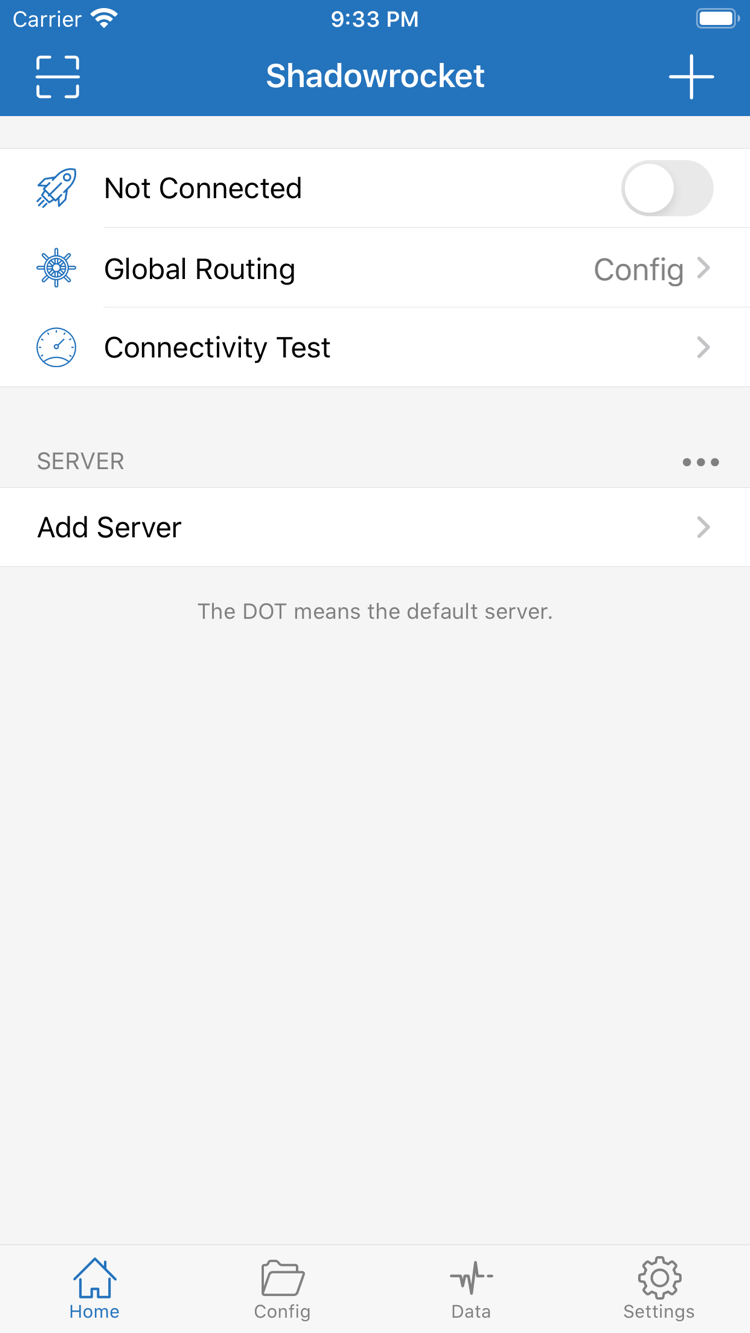
After choosing a mode, return to Home and check three things in order: the selected server under SERVER, the current Global Routing mode, and the connection status at the top. Not Connected in the screenshot means there’s no active connection. Confirm the first two settings before turning on the connection switch. That way, if something goes wrong, you’ll know exactly what you tested.
The first time you connect, iOS may ask to let Shadowrocket add a VPN configuration. This authorization lets the app establish a system network connection; it does not confirm that your subscription was imported or that the remote server is working. Confirm that Shadowrocket initiated the prompt, then allow it and complete any authentication required by your device. Return to Home and check whether the connection status has changed.
If you previously tapped Don’t Allow, return to the app and start the connection again to bring up the system prompt. Don’t toggle the switch rapidly. If the prompt doesn’t reappear or the connection ends as soon as it starts, check the VPN section in system settings for the corresponding configuration, then review the app’s error details. On managed devices, some network settings may be restricted by policy; confirm that the device allows this kind of configuration.
On iPad, follow the same sequence: select a server, check the mode, connect, and authorize the system prompt. Screen size and system layout may differ, so use labels such as Home and Global Routing to find the controls rather than relying on their exact positions in the screenshots. Check the App Store page for compatibility and system requirements.
After connecting, wait a moment and see whether the status remains stable. If the switch turns off right away, note the full message. If it stays on, don’t assume that every request is being handled as expected. A system VPN indicator shows the status of the system network connection, but it does not by itself confirm server authentication, DNS resolution, or access to a destination. Combine the app’s status with real-world access results.
STEP 04 / VERIFY
Connectivity Test: Tell reachability apart from actual access
Return to Home and run Connectivity Test to see the result for the selected server and test method. A result means the probe received a response; a timeout means it didn’t complete within the allotted time. Neither result proves that every app works or that the server is definitely down. Test Method options may check different parts of the connection, so use the same method when comparing results.
Next, open Safari and visit a page you’re authorized to access that you know is working. Check not only whether the homepage appears but also whether essential page resources load and any sign-in or service actions work. Reload a page that was already open to avoid mistaking cached content for a successful connection. Access to one page confirms only that request path; it says nothing about other domains, protocols, or apps.
When testing in Config, first decide whether the destination should use PROXY or DIRECT. It’s normal for a configuration to send some requests directly. If a service continues using its usual network route, that alone doesn’t mean Shadowrocket isn’t working. If only one destination is in question, keep the server and network unchanged, temporarily switch to Proxy, and test again. Note the difference, then restore the mode that suits your everyday use.
You can also compare direct access: note how the destination behaves while disconnected, then connect and try again. Don’t switch between Wi-Fi and cellular or change servers during the comparison, or you won’t know which change affected the result. To limit interference from background requests, test only a few specific pages. For sign-ins, payments, and other sensitive activity, follow the service’s own prompts; don’t use a network test to judge account status.
- First, note the connection status: Does Home remain connected? Is there a specific error?
- Next, note the test conditions: Selected server, Global Routing mode, Test Method, and whether you’re using Wi-Fi or cellular.
- Finally, note the access results: Did the destination load? Did the failure happen while loading or signing in? What changed between Config and Proxy?
You’re done when the connection stays stable and the destination you intend to use loads repeatedly under the same conditions—not when you see a particular latency number. If the test gets a response but access fails, note the difference and troubleshoot the failure in the next step. Don’t keep changing protocol settings just to lower the number.
STEP 05 / CHECK
Settings: Troubleshoot based on where the failure occurs
Pinpoint the failing step before changing settings. A subscription that doesn’t populate entries, a Connectivity Test timeout, a connection switch that won’t stay on, and trouble with one specific service each require different checks. Change one setting at a time and repeat the same test. If there’s no improvement, restore the original value before trying something else. This makes the results easier to interpret than changing the network, mode, and settings all at once.
Details won’t load? Check the subscription before changing routing
If the expected entry isn’t under SERVER, open the subscription record and check that the URL is complete, the access credentials are still valid, and what error appeared during the update. Check whether the subscription requires a particular network and ask the provider of your existing details to confirm the format and status. Don’t post the subscription URL publicly or create duplicate subscriptions to work around an error. Test individual servers only after the details have loaded successfully.
Test timeout or connection failure? Check the details and network first
Check Type, Host, Port, and authentication details one by one. Look for spaces added when pasting, an incorrect port, or a Type that doesn’t match the protocol. If your details include additional transport or TLS settings, check each against the original instructions; don’t disable verification at random. Also check that your device’s date, time, and time zone are correct, since an incorrect system clock can affect secure connections.
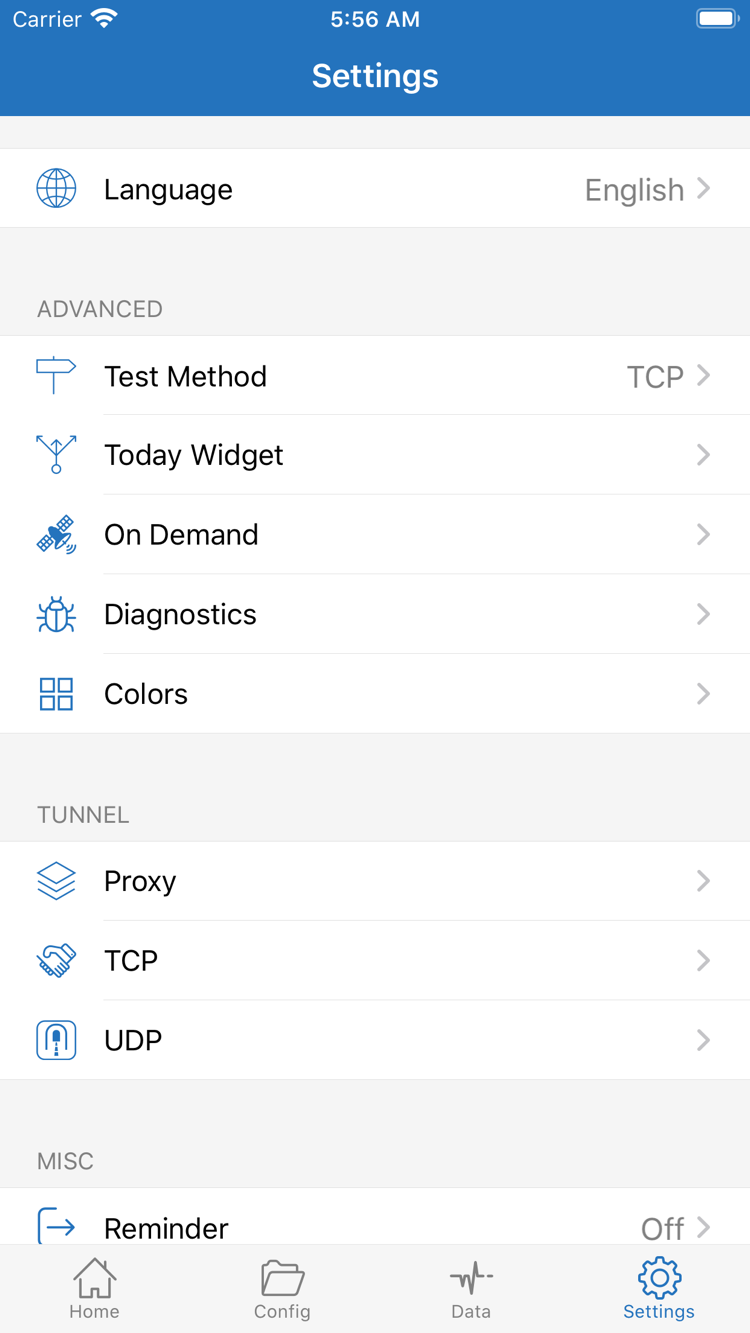
In Settings, check Test Method and make sure you’re comparing the same type of probe. A timeout with one method doesn’t mean you should delete the entry if access works. Conversely, a probe response with failed access means you should still check authentication, transport, and the destination path. If needed, test Wi-Fi and cellular separately while keeping all other conditions the same to see whether the network makes a difference.
Only some requests fail? Compare modes to find the rule
If the same server works in Proxy but fails in Config, check the active file and Rule in Config first. Look for a match to DIRECT or REJECT, or a policy that differs from what you expected. Don’t assume that adding a rule at the end of the file will override an earlier match; rule order matters. If you can’t tell what’s happening yet, keep the original configuration and note the destination domain and results in both modes.
Connection keeps changing? Check On Demand and diagnostics
If the connection restarts after you disconnect manually or its status changes repeatedly when the network switches, check for existing triggers under On Demand in Settings. Note the conditions before testing a manual connection. Disable them temporarily if needed, then see whether the same behavior continues. Don’t change advanced options in Proxy, TCP, UDP, or other sections at the start of troubleshooting; these options are not a checklist of settings that must all be enabled for a connection to work.
For more detailed troubleshooting, open Diagnostics in Settings and note the information relevant to when the issue occurred. Before sharing diagnostic details, redact subscription URLs, authentication details, personal addresses, and other sensitive information. Share only the error and conditions needed to reproduce the issue. For timeouts, see what to check when a server times out or won’t connect. For system authorization issues, read about the Add VPN Configuration prompt.